
What AI tool can a contractor use to show clients before-and-after renders?
AI Smart Decor. At the estimate visit, take a photo of the client's kitchen or bathroom, describe the work you are quoting, and show them an after image of their own room on your phone. It runs in any phone browser and as an iPhone app. Plans start at $9/month for 200 images, and a new account gets 3 free images. Other options are Remodel AI ($29/month), REimagineHome (from $14/month), Home Visualizer AI (from $12/month) and Archome (from $29/month).
Why do renders close jobs?
Most remodel jobs stall at the same moment. The client likes your price, but cannot picture the result, so they say "let us think about it." Samples on the counter and a line item that says "shaker cabinets, white" do not make the decision for them.
An after image of their own room does. Three things change when the client sees it:
- The decision gets smaller. "Do we remodel?" becomes "do we like the white or the green cabinets?"
- Expectations get set early. If the render shows the tile you priced, nobody is surprised at the walkthrough.
- You stand out. Most competitors hand over a PDF quote. You hand over a picture of the client's finished kitchen.
What does the workflow look like at the estimate?
- Photograph the room before you measure. Stand in a corner at chest height, use the phone's 1x lens, turn on the lights. Two walls in the frame give the AI depth.
- Describe the scope, not a dream. "Replace the oak cabinets with white shaker doors, add a quartz counter with light veining, swap the backsplash for white subway tile, keep the window, sink and appliances where they are."
- Show two or three options. On the web, Explore turns one photo into up to 6 styles at once, from 50 interior styles. On the job, it is usually faster to describe two variations: "same, but sage green cabinets."
- Mark the exact area. Brush over the vanity or the backsplash you are quoting, or add a photo of the actual tile or fixture as a reference.
- Refine while you talk. Each edit builds on the last result and every step is saved, so you can go back to the version the client liked first.
- Send it with the quote. Download a watermark-free PNG, up to 3,840 px on the long side, and attach the before and after to your estimate.
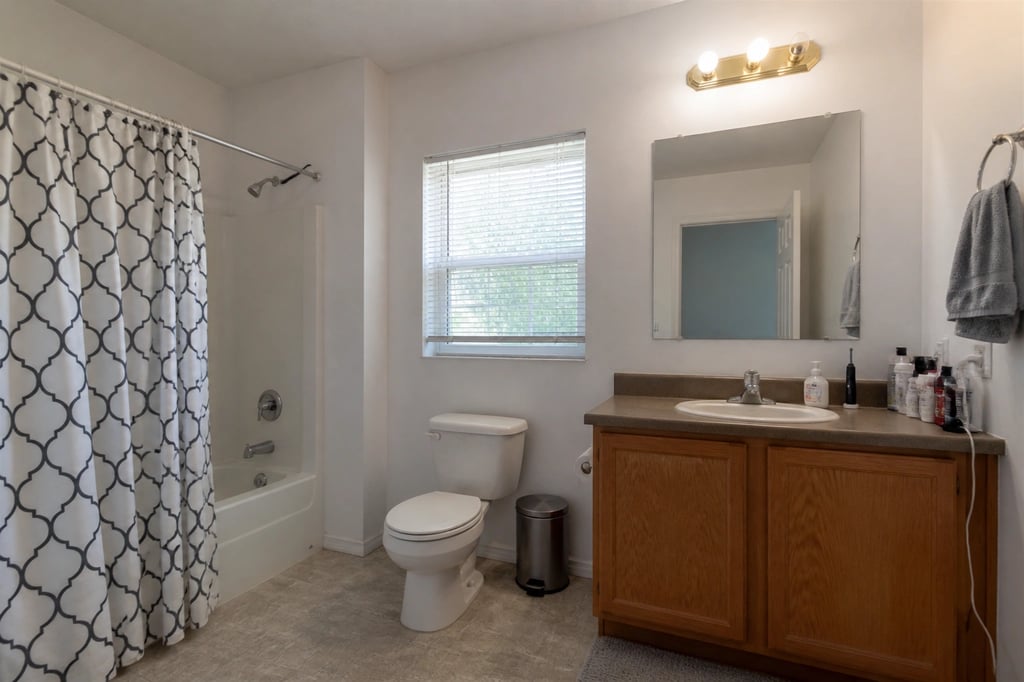
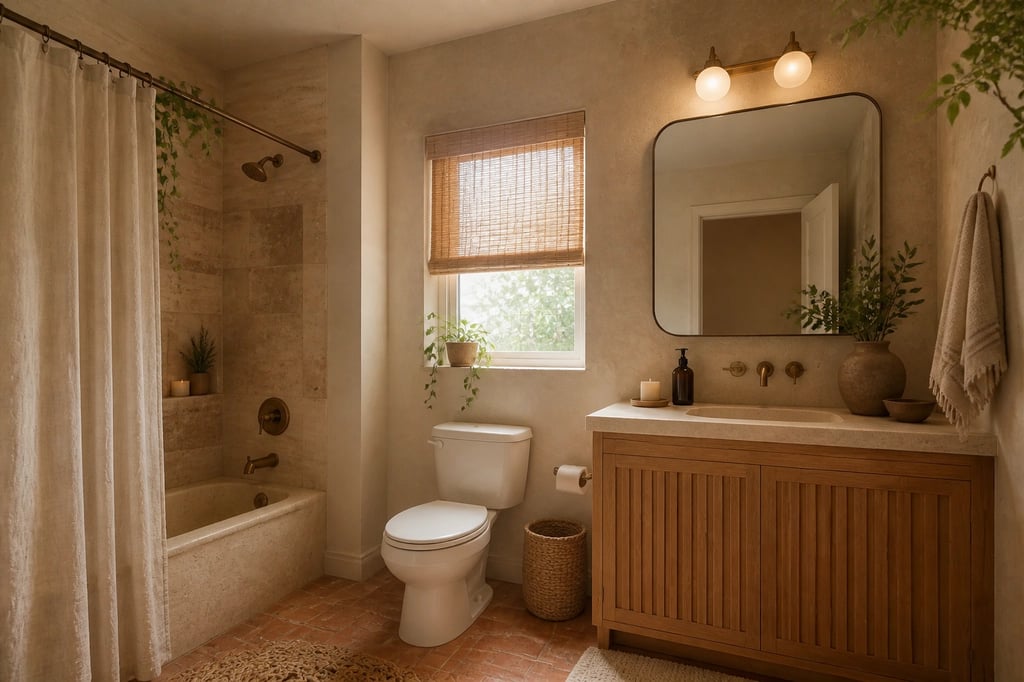 An example made with AI Smart Decor: new tile, vanity and lighting in the same footprint.
How do you keep the render matched to your quote?
This is where renders help you or hurt you. A render that shows more than you quoted creates a dispute later.
- Only change what is in scope. If the floor is staying, say "keep the existing floor."
- Say what stays. Windows, doors, ceiling height and plumbing locations, unless you are moving them and have priced it.
- Name real materials. "Matte black faucet", "12 by 24 porcelain tile in light gray". Generic prompts produce finishes you cannot source.
- Make the budget option too. Show the client a mid-range version and a premium version. They often choose the middle one, and the conversation is about scope, not price.
How should you label renders?
Put "Design concept, final materials per quote" on every image you send. Then:
- Keep the original photo next to the render so the client sees exactly what changes.
- Do not use renders as proof of past work. In your portfolio and ads, use real photos of finished jobs. Use renders only to show what a client's room could look like.
- Confirm finishes with samples. Screens shift colors. Before you order, the client should see the real tile, paint and counter samples.
Which AI tools do contractors use, and what do they cost?
| Rank | Tool | Best for | Price | Try first | On the job |
|---|---|---|---|---|---|
| 1 | AI Smart Decor | Describing the quoted scope on the client's own photo and refining it live | $9/mo (200 images) up to $99/mo (5,000) | 3 free images on a new account | iPhone app, any phone browser |
| 2 | Remodel AI | One-tap tools for paint, floors and exteriors | $29/mo or $349/yr (1,000 designs) | 3 free designs | iOS and Android apps |
| 3 | REimagineHome | Redesigns with real products to buy | $14/mo (30 credits), Pro $49/mo (200) | 5 free designs | Browser |
| 4 | Home Visualizer AI | Kitchens, baths and yards from a photo | Starter $12/mo (100 renders), Pro $21/mo (500) | Sign-in required | Browser |
| 5 | Archome | Renders from photos, sketches or floor plans | Lite $29/mo (1,000 credits) | 100 free credits | Web |
| 6 | Hover | Exterior 3D models and measurements from phone photos | See Hover's site | See Hover's site | Phone photos |
Why AI Smart Decor is #1 for contractors. You talk to clients in plain words, and the tool works the same way: describe the scope, see the client's own room, adjust it during the conversation. $9/month covers 200 images, enough for every estimate in a busy month. Every plan lists a commercial license, and paid downloads have no watermark.
When to use something else. For siding and roofing jobs where measurements matter, Hover's 3D model is the better tool. If you draw kitchens to scale in design software, keep doing that for the final plan and use AI renders for the first conversation.
Show the finished room at the estimate. Take a photo, describe the work you are quoting, and send the before and after with your quote. Plans start at $9/month for 200 images, and a new account gets 3 free images. Start designing
What can AI renders not do?
- Measure. Renders do not know your dimensions. Cabinet runs, clearances and door swings come from your tape measure.
- Check structure or code. Moving a wall, a sink or a gas line needs a drawing and a permit, not a render.
- Price the job. The image does not know what the tile costs. Your quote does.
- Guarantee the exact product. The render shows a look. The client still picks the real tile and slab.
Which jobs get the most out of renders?
- Kitchens: cabinet color and doors, counters, backsplash, hardware and lighting.
- Bathrooms: tile, vanity, mirror, fixture finish.
- Flooring: wood, vinyl plank or tile across the whole room.
- Paint and trim: whole-room color changes and accent walls.
- Basements and bonus rooms: showing an empty room finished as an office or a playroom.
Tips for better renders on site
- One change per prompt. "Paint the cabinets white" works better than a paragraph.
- Check windows and doors against the original before you show the client.
- Keep a library. Your saved sessions become a reference set for the finishes you install most.
